PDF compression guide
Test PDF Compression Quality, Not Just File Size
Compare PDF compression modes, inspect text and image quality, and catch flattened links, forms, signatures, or accessibility before sharing.
Understand the input
Identify what must survive.
Choose the trade-off
Match settings to the real task.
Verify the output
Check the result before replacing anything.
Download the reproducible feature-survival test
Use the same controlled file for every mode. The fixture contains a known searchable phrase, selectable account text, an external link, an editable form field, 8-point text, and thin colored rules. Keep the original, create one output per mode, and record each result without entering personal or confidential data.
Run the fixture through the JustUtils PDF compressor, then open each result in the same PDF reader. Preserve PDF Features should retain the document objects; Balanced and Smallest deliberately rebuild each page as a single image, so search, copy, links, and forms should fail while visual checks remain the deciding test.
Measured results: September 7, 2026
We ran the downloadable one-page fixture through the actual compressor controls in headless Google Chrome 152.0.7977.77 on macOS 26.6.2 (Apple silicon). The original is 3,092 bytes. Preserve produced an identical file; both raster modes made this compact, text-based document much larger. These are measured results for this fixture, not an estimate of the savings on scans or photographs.
| Output | Bytes | Change from input | Known text | Link / editable field |
|---|---|---|---|---|
| Original | 3,092 | Baseline | Present | Present / passes edit check |
| Preserve PDF features | 3,092 | 0% | Present | Present / passes edit check |
| Balanced | 88,602 | 2,765.52% larger | Absent | Absent / absent |
| Smallest file | 51,486 | 1,565.14% larger | Absent | Absent / absent |
All outputs kept one US Letter page. Text checks used pypdf to extract the known phrase and account number. The link check inspected its URI annotation. The form check inspected the field tree and widget, changed the value in memory, and reopened it to verify the change. These checks establish the stored document features; they do not claim clipboard, link navigation, or form-entry tests in every PDF reader.
The input SHA-256 is 70ad929cff0954fe6b3e00635c02a4ec306cd96db72e865415867eb8f3ddabe1. The browser run record contains every input/output hash, mode setting, library version, and compressor source hash. The completed scorecard and independent inspection record contain the text, link, form, and signature checks. Use the reproduction notes and evidence index to repeat the run.
A real signature test failed after compression
We also signed a copy of the fixture with a temporary test key. The synthetic signed original is 10,414 bytes. OpenSSL verified its CMS signature over the PDF byte ranges before compression. Its self-signed certificate failed the separate trust check, as expected: successful integrity verification does not establish a trusted identity. The private key was removed after fixture creation; the public test certificate is included with the evidence.
| Signed-fixture output | Bytes | Signature outcome |
|---|---|---|
| Preserve PDF features | 5,532 | Signature object remains, but its byte range is invalid and CMS verification fails |
| Balanced | 100,293 | No signature field or cryptographic signature remains |
| Smallest file | 59,070 | No signature field or cryptographic signature remains |
The visible signature stamp survived in all three rendered outputs. It did not mean the signature remained valid. Keep a signed original unchanged. This single synthetic test supports the warning for these modes; it is not certification of compatibility with other signature formats, trusted certificates, timestamp services, or PDF readers.
Visual observations and test limits
We rendered every original and output with Poppler 26.05.0 at 96 and 192 DPI. Both Preserve renders matched their respective originals pixel for pixel at 96 DPI. The raster outputs kept the visible content, including the form value and signature stamp, but small text and thin rules showed raster softness and JPEG artifacts. Heading weight also differed between the original Poppler render and the PDF.js-based raster output. This fixture uses standard PDF fonts, so renderer font handling contributes to the comparison. Inspect the original detail view, Balanced detail view, and Smallest detail view before deciding whether that quality is acceptable for your document.
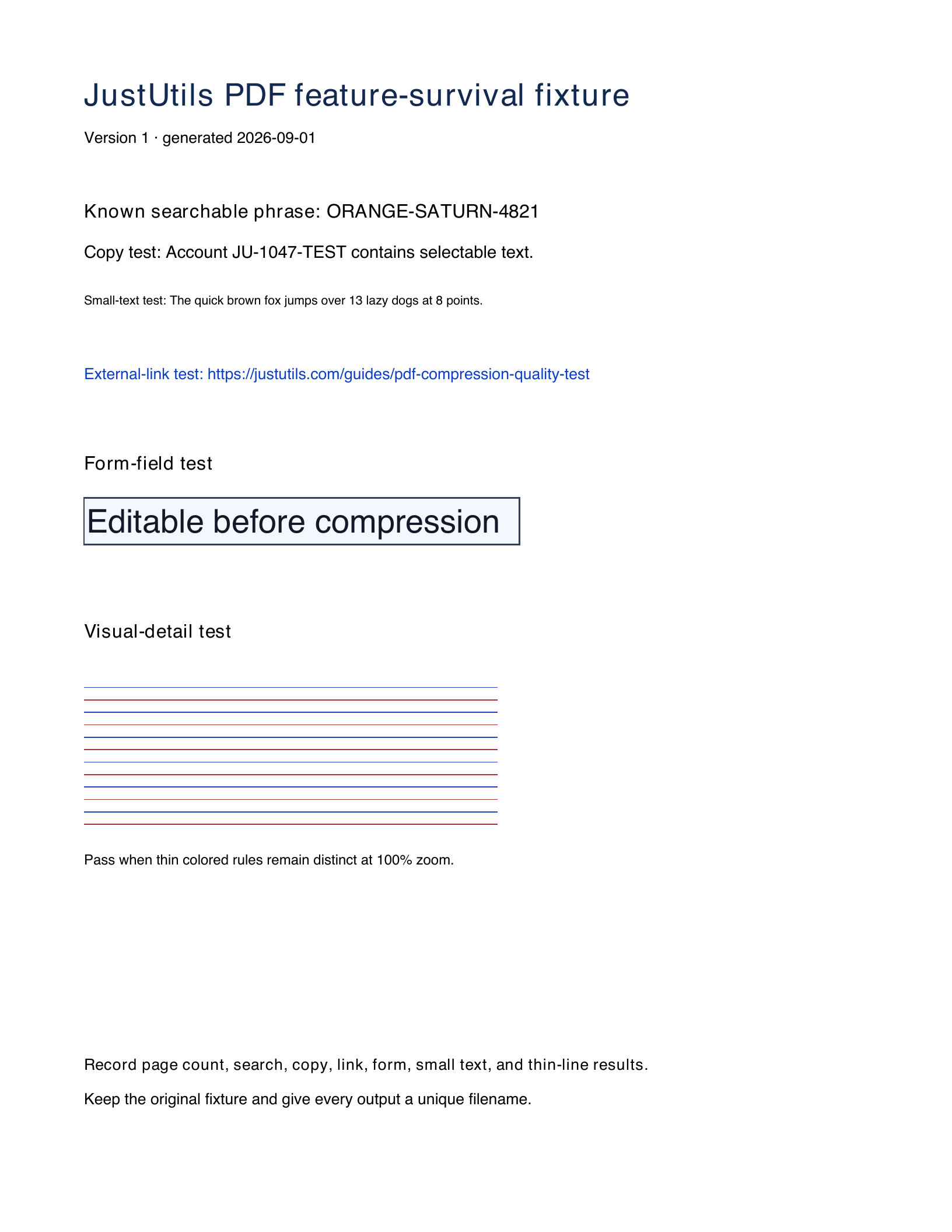
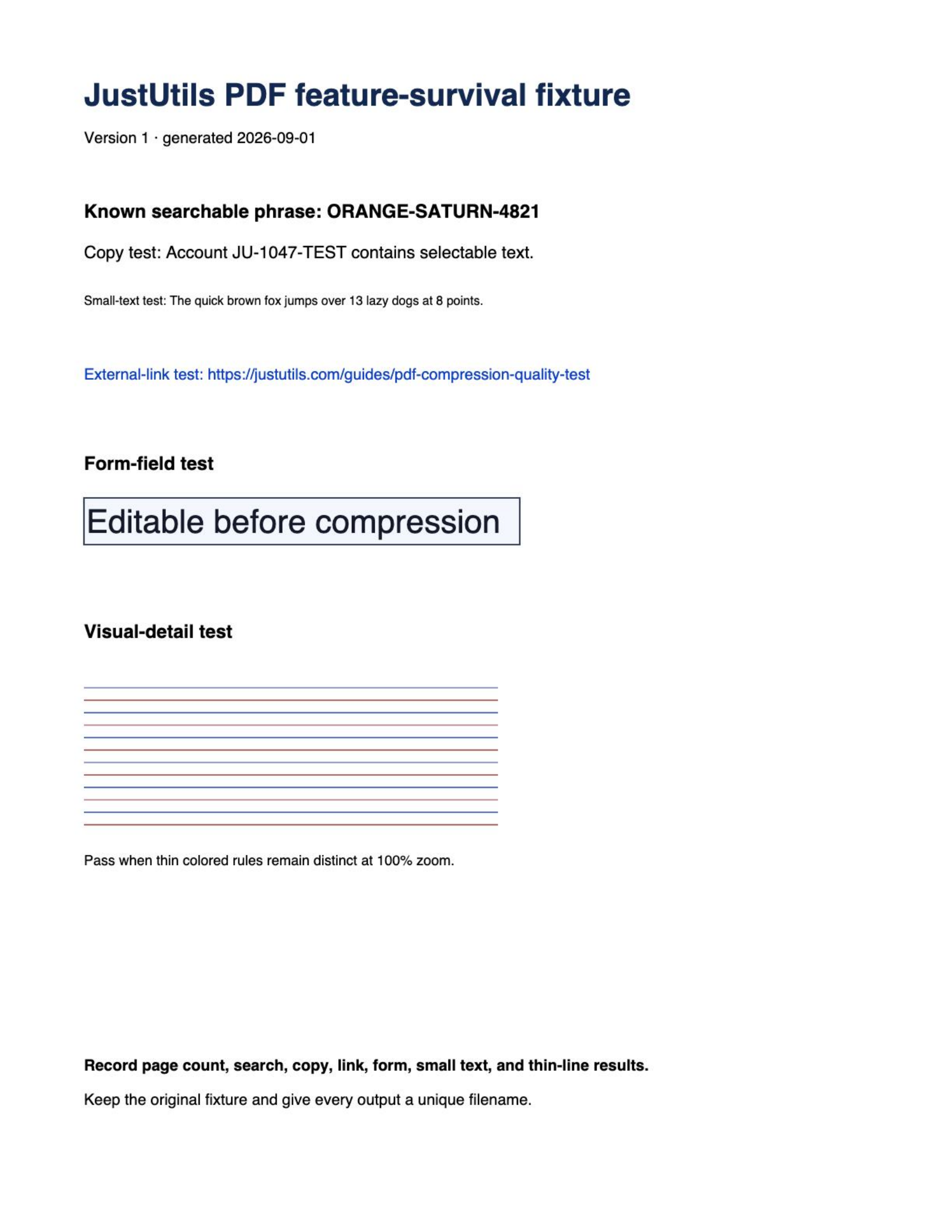
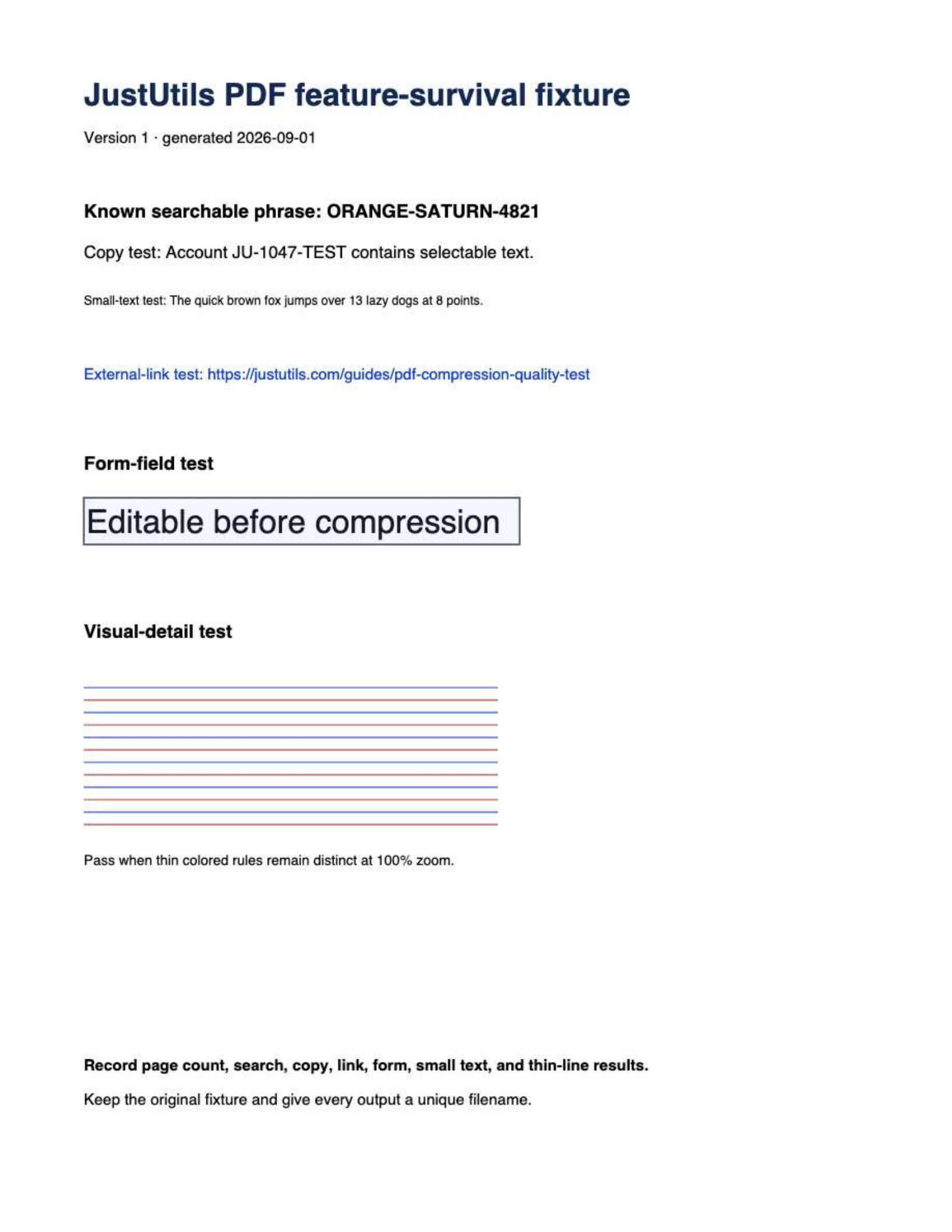
JustUtils publishes this as an automated browser benchmark with AI-assisted inspection and visual review. It has no named human specialist sign-off. The sample contains one small, digitally generated page and a signed variant of that same page. It does not measure photo-heavy scans, large files, other browsers, screen-reader accessibility, mobile memory limits, processing speed, or upload-portal acceptance. Dates identify this test run; they do not imply that every possible PDF has been reviewed.
A smaller PDF is useful only if it still does the job
File size is easy to measure, which makes it tempting to treat the smallest result as the winner. That test misses the expensive failures: a searchable report becomes a stack of images, a form can no longer be completed, a link stops working, or 8-point text becomes tiring to read. Start by listing what the recipient must be able to do with the file.
For example, an application portal may require “under 5 MB, readable on screen, no form fields needed.” A contract may require “selectable text, intact links, and the original digital signature.” If signature validity is required, keep the signed original unchanged; none of these compression modes guarantees it, even when the result looks identical.
What the three JustUtils modes actually change
| Mode | Implementation | Likely trade-off |
|---|---|---|
| Preserve PDF features | Rewrites the existing PDF with object streams; it does not rasterize pages | Page content is not rasterized; check text, links, and forms. Savings may be modest or zero, and digital signatures can become invalid |
| Balanced | Renders every page at 144 DPI and stores it as JPEG with a 0.76 quality factor | May reduce image-heavy inputs; check actual output size. Page content is flattened |
| Smallest file | Renders every page at 108 DPI and uses a 0.58 JPEG quality factor | Smaller output, with a greater risk of soft small text and visible image artifacts |
In the two raster modes, the page is rebuilt as one image. It may look similar, but its text is no longer selectable and links, forms, annotations, accessibility structure, and signatures are flattened. Use the PDF compressor only after deciding whether that behavior is acceptable.
Every mode, including Preserve PDF Features, rewrites the PDF and can invalidate a digital signature. Keep the signed original unchanged and verify signature status in your PDF reader. A visible signature is not proof of cryptographic validity.
Build a five-page representative test set
You do not need to inspect every page at maximum zoom. Choose pages that expose different failure modes, then use the same set for every candidate output:
- The smallest body text. Include footnotes, subscripts, or dense terms and conditions.
- A photograph or shaded chart. Look for blockiness, halos, banding, and lost labels.
- Thin lines. Test tables, diagrams, light gray rules, and small colored text.
- An interactive page. Include a hyperlink, form control, bookmark, annotation, or selectable ID number.
- An unusual page. Include landscape orientation, a large sheet, transparency, or a scanned signature.
If the document has fewer than five pages, inspect every page. If it has hundreds, add the first and last page plus at least one page from each distinct source or scan batch.
Write pass-or-fail criteria before comparing outputs
Replace “looks fine” with checks another person can repeat. A portal submission might require an output below 5,000,000 bytes, legible 8-point text at 100% zoom, correct page count, and a successful test upload. A reference manual might instead require searchable text, working internal links, readable diagrams, and no fixed size ceiling.
Record each criterion as pass, fail, or not applicable for Preserve, Balanced, and Smallest. Stop at the least destructive mode that passes every required check. If no mode passes, the evidence points to a different workflow—such as removing unneeded pages, optimizing source images, or asking the recipient for another delivery method—rather than silently accepting unreadable output.
Run the comparison without overwriting evidence
- Keep the original unchanged and record its byte size and page count.
- Create a Preserve result first, then Balanced, then Smallest. Give each a distinct filename.
- Open all results in the same PDF reader at the same zoom level.
- Check the representative pages at fit-to-width, 100%, and the zoom level used for detailed reading.
- Search for a known phrase, copy an account number, open a link, and try any required form field.
- Record output size only after the functional and visual checks pass.
This order gives you a stopping rule: accept the least destructive result that meets the delivery limit. There is no benefit in flattening a document merely because an even smaller copy can be produced.
Why no compressor can promise an exact percentage
A scanned magazine may contain millions of noisy pixels per page, while a digitally generated invoice may contain only fonts and drawing commands. A file may already use compressed JPEG images or efficient object streams. Re-encoding the first document can save a great deal; rewriting the second may barely change it and can occasionally make it larger.
If a portal has a hard limit, aim below it rather than exactly at it. File-size displays can use decimal MB or binary MiB, and another system may add metadata. A practical margin prevents a technically close result from being rejected.
Decision record you can reuse
Write one line with the chosen mode and the checks performed: “Balanced; 3.8 MB; pages 1, 7, 12, 19, and 24 checked at 100%; text readable; selectable text not required; uploaded to the destination successfully.” This makes the trade-off explicit and gives another person enough information to repeat the test.
Sources and implementation references
- Mozilla PDF.js — the renderer used to turn PDF pages into browser canvases.
- pdf-lib documentation — the library used by the feature-preserving rewrite mode.
- jsPDF documentation — the library used to assemble rasterized pages into the output PDF.
- pyHanko signing documentation — the test-only library used to create the synthetic signature fixture.
- OpenSSL CMS verification documentation — the independent signature integrity check; certificate trust is a separate result.
Continue the private PDF workflow
Compression is only one operation. Use the private PDF toolkitfor page-level organization, merge PDF files before a single delivery, or extract only the pages needed when removing unnecessary pages is safer than flattening the document.